
AetherSX2 BIOS Download: PS2 BIOS for Android (All Regions)
The AetherSX2 BIOS is the one file every player needs before any PS2 game will run. AetherSX2 does not include it, so you add a PS2 BIOS yourself. Get the file for USA, Europe, and Japan, plus a simple setup guide and the safe, legal way to get it.
What is the AetherSX2 BIOS?
The BIOS is the system software from a real PlayStation 2. It starts the console, checks the hardware, and loads the disc. An emulator copies the PS2 hardware, but it still needs this file to act like a real console.
AetherSX2 is built on PCSX2, so it uses the same PS2 BIOS that desktop PS2 emulators use. Once the BIOS is added, the app can boot and run your games. You add it one time, and then it stays set up.
BIOS vs ROM: what is the difference?
Many new players mix up these two files. They are not the same, and you need both.
The BIOS is the console software. It is the small program a real PS2 runs the moment you switch it on. It gets the machine ready to load a disc. You add the BIOS one time.
A ROM is the game itself. It is a copy of a PS2 disc, saved as an ISO or BIN file. You add one ROM for each game you want to play.
So the flow is simple. The BIOS turns the emulator into a working PS2. The ROM is the disc you put into it. Without the BIOS, the app has no system to start. Without a ROM, there is no game to load. Set up the PS2 BIOS first, then add your games.
|
Item |
What it is |
How many you need |
|---|---|---|
|
BIOS |
PS2 system software |
One, added once |
|
ROM (ISO) |
A single PS2 game |
One per game |
Why you need a PS2 BIOS
Without the BIOS, AetherSX2 has nothing to start. You will see a “BIOS not found” message and no game will load. The BIOS handles system startup, memory, and disc reading, the same jobs it does on real hardware.
This is why the BIOS is a one-time, must-have step. Set it up once and you are ready for every game after that.
BIOS file details
|
File name |
PS2 BIOS |
|
Format |
.bin |
|
Size |
Around 4 MB |
|
Regions |
USA (NTSC-U), Europe (PAL), Japan (NTSC-J) |
|
Works with |
AetherSX2, NetherSX2 |
|
Required |
Yes |
Which PS2 BIOS version and model to pick
PS2 consoles shipped in many models over the years. Each model has a code that starts with SCPH. The BIOS from most later models works well with AetherSX2, so you do not need to hunt for a rare version.
Here is what matters. Pick the BIOS by region first, then by a model known to be stable. The list below shows safe, common choices.
|
Region |
Good models |
Notes |
|---|---|---|
|
USA (NTSC-U) |
SCPH-39001, SCPH-70012 |
US and most Asian games |
|
Europe (PAL) |
SCPH-70004, SCPH-90004 |
Europe, Brazil, Australia |
|
Japan (NTSC-J) |
SCPH-10000, SCPH-50000 |
Japanese game files |
A newer model BIOS, like the 70000 or 90000 series, tends to boot the most games without trouble. If one BIOS gives you a black screen, try another model from the same region. The game data does not change, only the system file does.
You do not need every version. One good BIOS per region is enough for almost all games.
Download the PS2 BIOS File for AetherSX2 BIOS
Pick the region that matches your games, then download the file. Not sure? Read the region guide below first.
he safest, fully legal option is to copy the BIOS from a PS2 you own (explained below).
Choose the right BIOS region
The region decides which games boot cleanly. Match the BIOS to where your game is from.
|
Your games / country |
BIOS to pick |
Common models |
|---|---|---|
|
United States, most of Asia |
USA (NTSC-U) |
SCPH-70012, SCPH-39001 |
|
Europe, Brazil, Australia |
Europe (PAL) |
SCPH-70004, SCPH-90004 |
|
Japan |
Japan (NTSC-J) |
SCPH-10000, SCPH-50000 |
Notes for our main regions:
- India and Indonesia: the USA (NTSC-U) BIOS works for most game files you will find.
- Brazil: use the Europe (PAL) BIOS for most local titles, since Brazil used PAL discs.
- If a game shows a region error, switch to the BIOS that matches the game and try again.
- When in doubt, start with the USA BIOS. It boots the widest range of games.
How to install the AetherSX2 BIOS
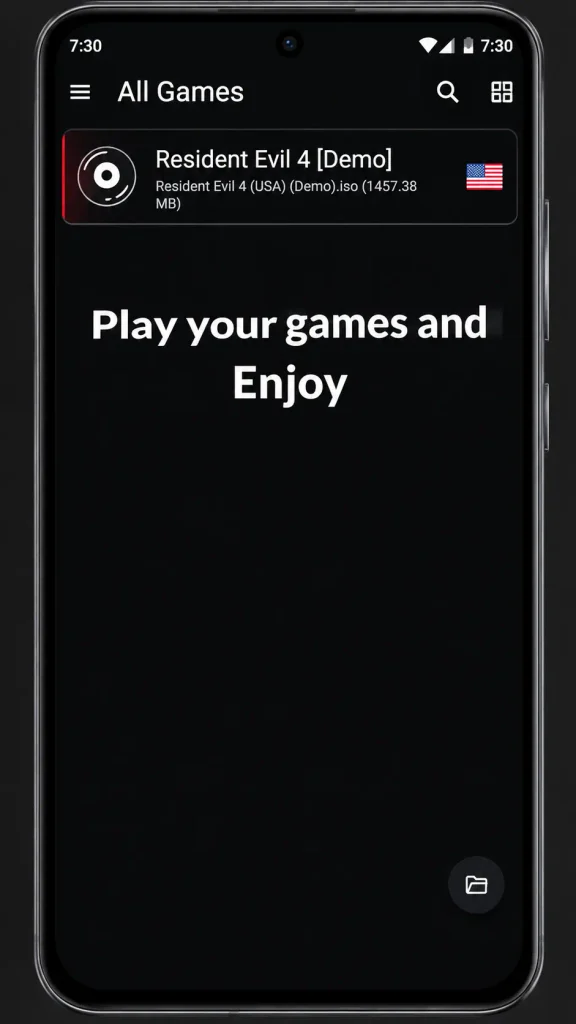
Follow these steps once. Each step shows a real screenshot on the live page.
- Download the BIOS file for your region to your phone.
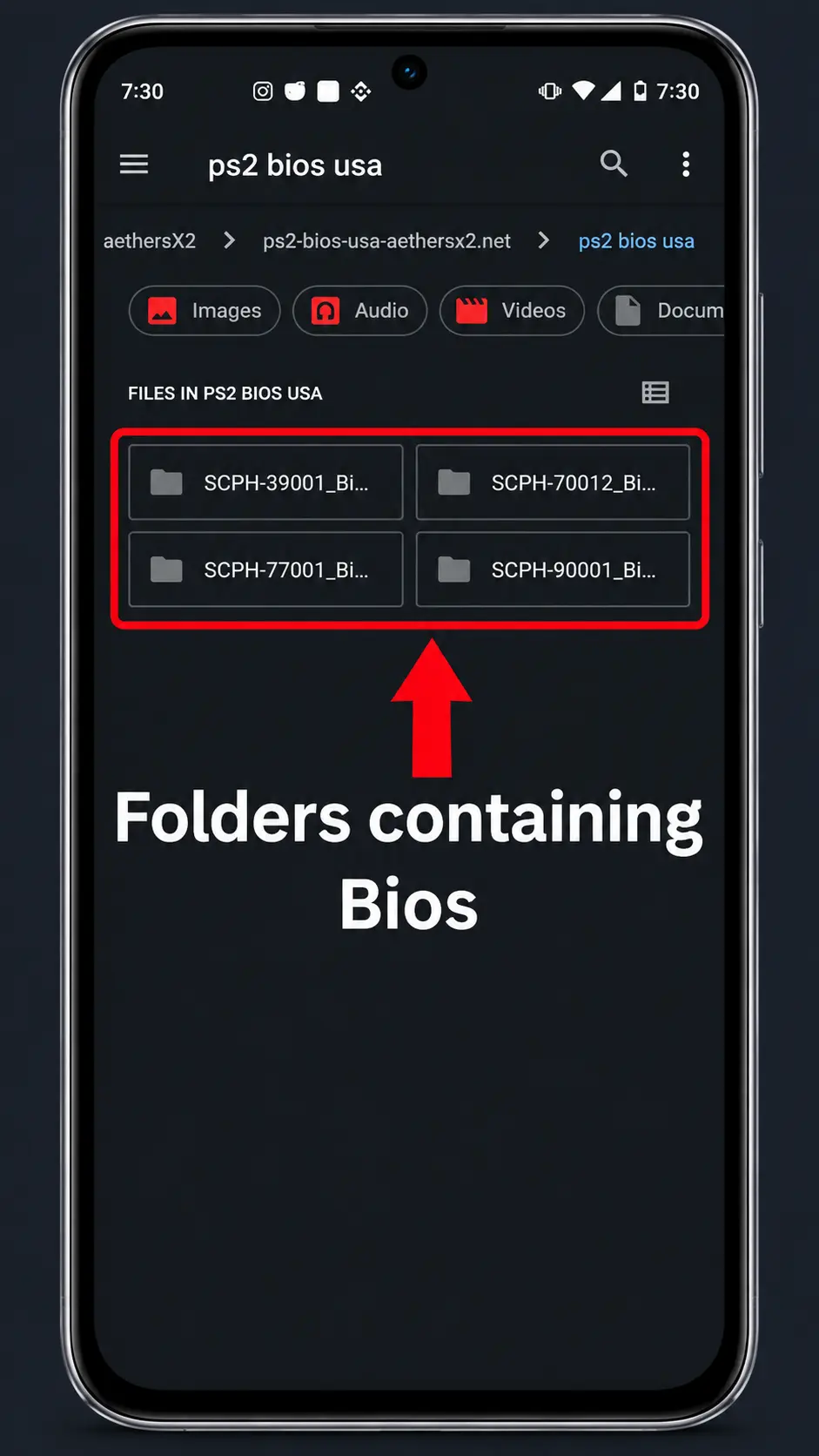
- Open AetherSX2 and go to the BIOS setup screen.
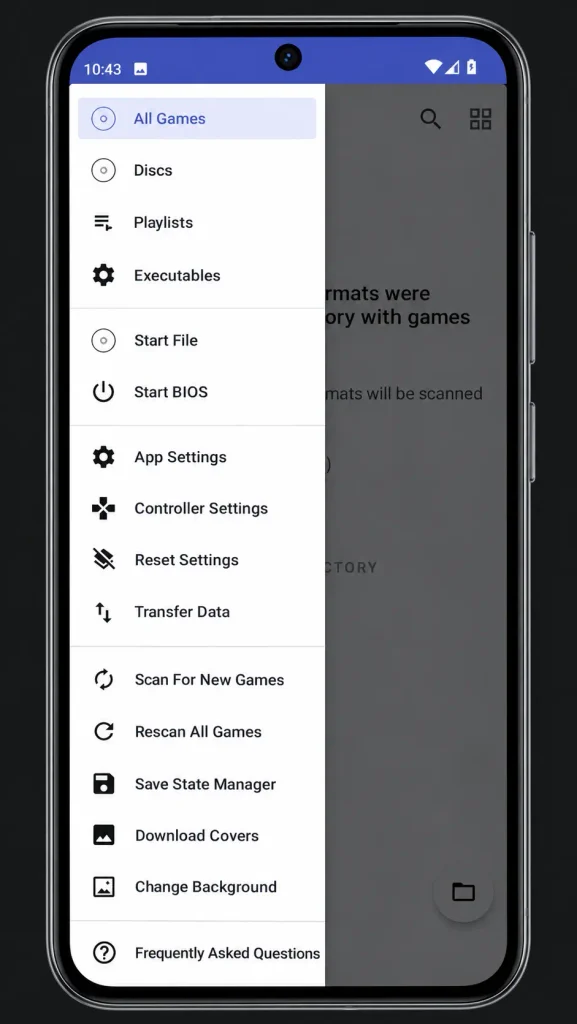
- Tap Import BIOS and browse to the folder where you saved the file.
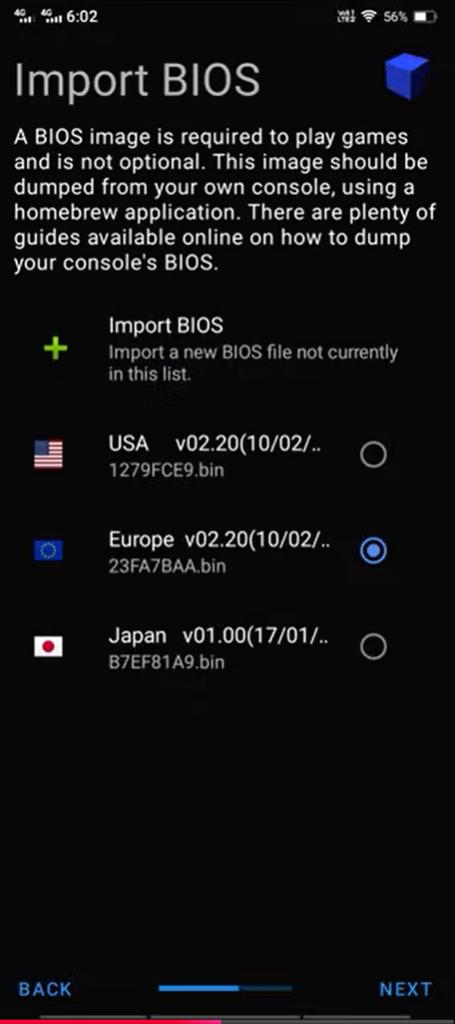
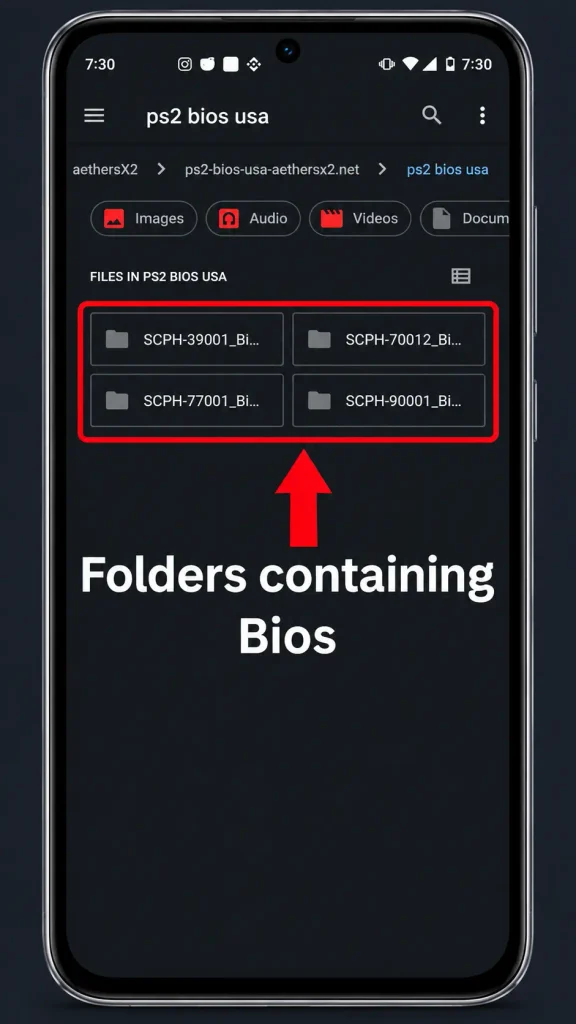
- Select the correct .bin file, then confirm.
- When the BIOS shows as added, tap Next. You are ready to add games.
Best AetherSX2 settings after adding the BIOS
Once the PS2 BIOS is added, a few settings help games run smoother. These are safe starting points for most Android phones.
Graphics:
- Renderer: Vulkan on newer phones, OpenGL if Vulkan crashes.
- Resolution: 2x or 3x native. Higher looks sharper but costs speed.
- Keep frame skipping off unless a game runs slow.
Speed:
- Turn on the frame rate counter so you can see real performance.
- If a game drops below full speed, lower the resolution first.
- Close background apps before you play.
System:
- Match the BIOS region to your game region for a clean boot.
- Use the default emulation settings until a game needs a change.
Start with these, play for a few minutes, then adjust one setting at a time. Small changes make it easy to see what helps. Strong phones can push higher resolution, while budget phones run best at 2x.
How to get the BIOS the safe and legal way
The BIOS is owned by Sony, so the clean way is to copy it from a PS2 you own. This keeps you on the right side of the rules and gives you a file that matches your console.
If you download a BIOS instead, only use a clean, trusted source, and scan the file. Never install a BIOS bundled inside a random APK.
PS2 BIOS for PC (PCSX2): a quick note
Some readers want the PS2 BIOS for a computer, not a phone. On PC, the PS2 emulator is called PCSX2. It uses the same kind of PS2 BIOS file that AetherSX2 uses on Android, because AetherSX2 is built on PCSX2.
The steps are close. You dump or add the BIOS, point the emulator to it, then load your games. The main difference is the app and the menus, not the file.
A full PCSX2 guide is coming on a separate page. For now, the same region and model advice on this page works for PC as well.
Common BIOS problems and fixes
The app cannot see the file. Move the .bin to an easy folder like Downloads, then import it again from the BIOS screen.
Usually a wrong region or a broken game file. Switch to the BIOS that matches your game, and try a fresh copy of the game.
The game and BIOS regions do not match. Pick the BIOS from the region guide above that fits the game.
Make sure the file is a .bin and not still inside a ZIP. Unzip it first, then import.
Close the app fully and open it again. If it keeps crashing, switch the graphics renderer from Vulkan to OpenGL, then import the BIOS once more.
The BIOS is fine, but the game file may be the problem. Check that your ROM is a full ISO or BIN, not a ZIP. Add the game again after the BIOS shows as ready.
Is the PS2 BIOS safe and legal?
A clean BIOS file is safe. The risk comes from where you get it, so avoid random modded APKs and unknown links. Scan any file you download.
On the legal side, the emulator is legal to use. The BIOS is copyrighted, so the correct path is to dump it from your own PS2 console. Owning the hardware is what keeps this above board.
Frequently asked questions
Final note
The BIOS is a one-time setup that unlocks every PS2 game in AetherSX2. Pick the right region, import the .bin, and you are ready to play. For the emulator itself, see our main AetherSX2 APK page, and for the ad-free build, see NetherSX2.